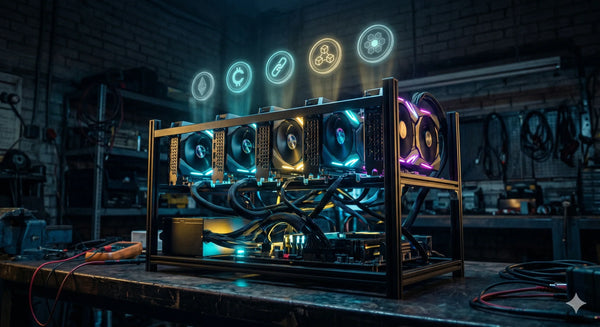
If you're building a GPU mining rig in Australia, the operating system you run matters just as much as the hardware you bolt together. HiveOS is a Linux-based mining OS built specifically for managing GPU rigs — and for most home miners, it's the best option available. This guide walks you through the full setup process from account creation to your first mined block, with Australian-specific tips throughout.
What Is HiveOS and Why Use It?
HiveOS is a lightweight Linux distribution designed exclusively for cryptocurrency mining. Unlike mining on Windows — where you're fighting driver conflicts, Windows Update reboots, and bloated resource usage — HiveOS strips everything back to the essentials: your GPUs, your mining software, and a web dashboard to manage it all remotely.
The main advantages over a Windows setup are significant. You get remote management from any browser or phone app, meaning you can change pools, adjust overclocks, and reboot your rig from anywhere. The built-in overclocking tool lets you tune each GPU individually without third-party software like MSI Afterburner. Automatic fan profiles adjust cooling based on GPU temperatures. And flight sheets let you switch between coins, pools, and mining algorithms in seconds.
For Australian home miners running one or two rigs, HiveOS is free — up to two workers with no coin, pool, or GPU count restrictions. Beyond that, pricing scales from $0.50 to $3.00 USD per month per rig depending on how many GPUs you have installed. If you're just getting started with building your first GPU rig, HiveOS is where you should land.
What You'll Need
Before you start, make sure you have the following ready:
- A fully assembled GPU mining rig — motherboard, CPU, RAM, PSU, and GPUs installed. If you're still sourcing parts, our GPU mining cards and rig accessories collections have everything from the open frame chassis to PSUs and mining motherboards.
- A USB flash drive (8 GB minimum, 16 GB recommended)
- A separate computer to create the bootable USB and access the HiveOS dashboard
- A monitor and keyboard for initial setup (can be removed once the rig is online)
- An Ethernet connection to your router — wired is strongly recommended over Wi-Fi for mining stability, as we covered in our Wi-Fi vs Ethernet guide
- A crypto wallet address for whatever coin you plan to mine
Step 1: Create a HiveOS Account and Farm
Head to hiveon.com and create a free account. Once logged in, you'll land on the dashboard. HiveOS organises everything into "farms" — think of a farm as a container for one or more mining rigs (called "workers").
Create your first farm and give it a name. Something simple like "Home Rig" works fine. Inside the farm, click "Add Worker" and select "Rig" (not ASIC). HiveOS will generate a rig.conf file containing your farm hash — this is how the rig identifies itself to your account when it boots up. Download this file and keep it handy for Step 3.
Step 2: Flash HiveOS to a USB Drive
Download the latest HiveOS GPU image from the official website. It comes as a compressed .img file, typically around 1.5 GB.
To flash it to your USB drive, use Balena Etcher (available for Windows, macOS, and Linux). The process is straightforward: select the downloaded HiveOS image, select your USB drive as the target, and click Flash. This will take a few minutes.
Once flashing is complete, do not eject the USB drive yet — you need to copy your rig.conf file onto it first. Open the USB drive in your file manager, navigate to the root directory, and paste the rig.conf file you downloaded in Step 1. If there's already a rig.conf placeholder file on the drive, replace it. This step is critical — without it, the rig won't connect to your HiveOS account on first boot.
Step 3: First Boot
Insert the USB drive into your mining rig, connect a monitor and keyboard, plug in the Ethernet cable, and power the rig on. Enter your BIOS and set the USB drive as the first boot device. Some mining motherboards like the ASRock H510 Pro BTC+ and BIOSTAR TB360-BTC PRO 2.0 have specific settings to enable all PCIe slots — make sure these are configured correctly or some of your GPUs won't be detected.
Key BIOS settings to check:
- Set all PCIe slots to Gen 1 or Gen 2 (not Auto) for maximum compatibility with PCIe risers
- Enable "Above 4G Decoding" — essential for rigs with more than two GPUs
- Set primary display to the onboard GPU (iGPU) if your CPU has integrated graphics, so all discrete GPUs are available for mining
- Disable Secure Boot
- Set boot priority to USB first
Save and reboot. HiveOS will boot from the USB drive, detect your hardware, and connect to your farm using the credentials in rig.conf. Within a few minutes, your worker should appear online in the HiveOS web dashboard. At this point, you can disconnect the monitor and keyboard — everything from here is managed remotely through the browser or mobile app.
Step 4: Create a Wallet
Before you can start mining, HiveOS needs to know where to send your coins. In the dashboard, navigate to Wallets and click "Add Wallet." Select the coin you want to mine (such as ETC, RVN, or ALPH), enter your wallet address, and give it a label.
If you're not sure which coin to target, our guides on mining Ethereum Classic in Australia and altcoin vs Bitcoin mining profitability can help you decide. The beauty of HiveOS is that switching coins later takes about 30 seconds — you're not locked in.
Step 5: Set Up a Flight Sheet
Flight sheets are the heart of HiveOS. A flight sheet tells your rig three things: what coin to mine, which pool to use, and which wallet to pay into. It also specifies the mining software (called the "miner") to use.
To create one, go to Flight Sheets in the dashboard and click "Add Flight Sheet." Fill in:
- Coin: Select your target coin (e.g., ETC)
- Wallet: Select the wallet you created in Step 4
- Pool: Choose from the built-in pool list or enter custom pool details. For Ethereum Classic, popular options include F2Pool, 2Miners, and Ethermine. Our mining pool guide covers the selection process in detail.
- Miner: HiveOS supports dozens of mining software options. For AMD GPUs, lolMiner and TeamRedMiner are solid choices. For NVIDIA, T-Rex and Gminer are popular. HiveOS will suggest compatible miners based on your coin selection.
Save the flight sheet, then apply it to your worker. The rig will download the selected miner, connect to the pool, and start hashing. You should see hashrate data appearing in the dashboard within a few minutes.
Step 6: Overclock Your GPUs
This is where HiveOS really shines compared to Windows. The built-in overclocking tool gives you per-GPU control over core clock, memory clock, power limit, and fan speed — all applied remotely and persistently across reboots.
Navigate to your worker, click the Overclocking tab, and you'll see each GPU listed. The optimal settings depend on your specific card and the algorithm you're mining. Here are some general principles:
- Memory-heavy algorithms (ETCHash, KawPow): Increase memory clock, reduce core clock, and lower the power limit. This maximises hashrate per watt.
- Core-heavy algorithms (Autolykos, Blake3): Core clock matters more here. Keep memory moderate and focus on core frequency and power.
- Power limit: Always start conservative. Reducing power limit by 20–30% typically drops hashrate by only 5–10% but significantly improves efficiency — critical at Australian electricity rates.
- Fan speed: Use HiveOS's Autofan feature to set a target temperature (65–70°C is a good range for most GPUs) and let the system manage fan speeds dynamically. This is especially important during Australian summers when ambient temperatures push hardware harder.
A few card-specific starting points from our catalogue:
| GPU | Algorithm | Core (MHz) | Mem (MHz) | Power Limit (W) | Approx. Hashrate |
|---|---|---|---|---|---|
| RX 6700 XT | ETCHash | 1200 | 2150 | 90 | ~32 MH/s |
| RX 6800 XT | ETCHash | 1100 | 2100 | 110 | ~62 MH/s |
| RTX 3080 | ETCHash | 1100 | +1200 | 230 | ~97 MH/s |
| RX 580 8GB | ETCHash | 1150 | 2100 | 85 | ~30 MH/s |
| RX 6600 XT | ETCHash | 1200 | 2100 | 70 | ~30 MH/s |
These are starting points — every individual card varies slightly. Increase memory clock in small increments (25–50 MHz) and watch for invalid or rejected shares in the dashboard. If invalids spike, you've gone too far. Our guide on reading your miner's stats explains what to look for.
Step 7: Set Up Remote Monitoring and Alerts
One of HiveOS's strongest features is remote monitoring. The web dashboard shows real-time hashrate, GPU temperatures, fan speeds, power consumption, accepted and rejected shares, and uptime for every worker in your farm.
For mobile monitoring, install the HiveOS app (available on iOS and Android). You can also configure Telegram or Discord notifications to alert you when a worker goes offline, a GPU overheats, or your hashrate drops below a threshold. Set these up under Farm Settings → Notifications.
If you're running multiple rigs or want more monitoring options, our remote monitoring guide covers additional tools and strategies. For networking multiple rigs together, our home network guide applies to GPU rigs as well.
Useful HiveOS Features Most Beginners Miss
Once your rig is hashing, explore these features that make day-to-day management much easier:
- Schedules: Set your rig to mine only during off-peak electricity hours. This is particularly valuable in Australian states with time-of-use (TOU) tariffs, where overnight rates can be significantly cheaper. Check our Australian electricity market guide for TOU rate details by state.
- Watchdog: Automatically reboots the rig if hashrate drops to zero or a GPU hangs. Essential for unattended operation.
- Autofan: Dynamic fan control that adjusts speeds based on target temperature. Set it and forget it.
- Multiple flight sheets: Create flight sheets for different coins and switch between them instantly based on profitability. WhatToMine is the standard tool for comparing which coin is most profitable at your electricity rate on any given day.
- Hive Shell: Remote terminal access to your rig via the browser — useful for troubleshooting without needing physical access.
Which GPUs Work Best With HiveOS?
HiveOS supports virtually all modern AMD and NVIDIA GPUs. AMD Polaris (RX 500 series), RDNA 1 (RX 5000 series), RDNA 2 (RX 6000 series), and RDNA 4 (RX 9000 series) cards are all fully supported. On the NVIDIA side, Turing (RTX 20 series) and Ampere (RTX 30 series) cards work out of the box.
From our catalogue, cards well-suited for a HiveOS rig include:
- Sapphire NITRO+ RX 6700 XT 12GB — excellent efficiency on ETCHash, cool-running triple fan
- Yeston RX 6800 XT 16GB — high hashrate workhorse with 16 GB VRAM headroom
- ASUS TUF RTX 3080 10GB — top-tier performance, GDDR6X memory excels on memory-heavy algorithms
- SOYO RX 580 8GB — budget entry point, proven mining reliability
- Gigabyte RX 9060 XT 16GB — latest-gen RDNA 4 with strong efficiency per watt
- RTX 2080 Ti 22GB — massive VRAM for future-proof algorithm compatibility plus AI/ML flexibility
For a deeper comparison of GPU vs ASIC mining economics, see our ASIC vs GPU mining breakdown.
Troubleshooting Common Issues
A few problems you're likely to encounter on first setup:
- Worker not appearing in dashboard: Check your rig.conf file is correctly placed on the USB root. Verify Ethernet is connected and your router is assigning a DHCP address. Try plugging the USB drive back into your computer and re-downloading rig.conf from the dashboard.
- GPUs not detected: Enter BIOS and confirm all PCIe slots are enabled, Above 4G Decoding is on, and PCIe speed is set to Gen 1 or Gen 2. Faulty risers are a common culprit — swap them one at a time to isolate the issue.
- Miner crashes after overclocking: You've pushed too far. Reset to stock clocks via the dashboard and increase incrementally. Memory overclock is usually the offender.
- High rejected shares: This often points to an aggressive memory overclock or poor network connectivity. Our stats reading guide breaks down acceptable rejection rates and what they mean.
- Rig rebooting randomly: Check PSU capacity — a 2000W PSU should handle most 6-GPU rigs, but if you're running high-power cards near their limits, total draw plus motherboard and CPU overhead can exceed supply. Monitor total wall draw with a kill-a-watt meter.
Electricity Costs and Profitability
HiveOS reports real-time power consumption per GPU, making it easy to calculate your actual electricity costs. This matters in Australia more than almost anywhere else — our residential rates of $0.28–$0.38/kWh mean that efficiency per watt is the single most important metric for profitability.
A 6-GPU rig running RX 6700 XTs at 90W each draws roughly 540W from the GPUs alone. Add motherboard, CPU, and PSU inefficiency overhead and you're looking at approximately 650–700W total, or about 16–17 kWh per day. At $0.31/kWh (Western Australia's typical rate), that's roughly $5.00–$5.30 per day in electricity. Whether mining revenue exceeds that depends on the coin, the current market, and network difficulty.
Be realistic about these numbers. Our state-by-state electricity comparison and electricity and mining deep dive lay out the full picture. If you have access to solar power, the economics shift dramatically in your favour during daylight hours.
Tax Implications for Australian GPU Miners
The ATO treats mined cryptocurrency as assessable income (for business miners) or as a CGT asset (for hobby miners). The hardware itself — your GPUs, motherboard, PSU, frame, and risers — is depreciable if you're operating as a business. Our ATO crypto mining tax guide and hardware depreciation guide cover the specifics. If you're unsure whether you need an ABN, this guide breaks down the ATO's threshold.
HiveOS doesn't generate tax reports directly, but the pool you mine to will typically provide payout history exports. Download these regularly and record the AUD market value of each payout on the date received — your accountant will thank you at EOFY.
Ready to Build?
HiveOS turns a pile of GPUs and cables into a remotely managed mining operation. The initial setup takes an afternoon, and once it's running, daily management is a few minutes of checking the dashboard. For Australian home miners, it's the most efficient way to run a GPU rig without the headaches of Windows.
If you're still sourcing hardware, browse our mining GPU collection and rig accessories for everything you need to get started. Already mining and have questions? Get in touch — we're happy to help.