Overclocking your ASIC miner is one of the fastest ways to boost hashrate and profitability — without spending a cent on new hardware. But push it too hard, too fast, and you're looking at burnt chips, thermal throttling, or a warranty claim that gets knocked back the moment the manufacturer checks your logs.
This guide covers how to overclock your ASIC safely: the right firmware, the right temps, and the right process — so you get more performance without gambling your rig.
What Is ASIC Overclocking?
Every ASIC miner ships from the factory with conservative clock speeds and voltage settings. Manufacturers do this deliberately — they're optimising for stability and longevity across a wide range of operating environments, not peak performance.
Overclocking means pushing those settings beyond factory defaults: higher clock frequencies, increased voltage, or both. The result is more hashrate per unit, which means more Bitcoin earned per day. The trade-off is higher power draw and more heat — both of which need to be managed carefully.
Underclocking (or undervolting) is the inverse: you run the miner below factory specs to reduce power consumption and heat. Many miners in hot Australian climates — or those paying high electricity rates — find underclocking actually improves their net profitability even though it lowers hashrate.
Will Overclocking Void Your Warranty?
This is the question everyone asks, and the honest answer is: it depends.
Most ASIC manufacturers — including Bitmain, MicroBT, and Jasminer — technically consider overclocking a warranty-voiding action if it's done through unofficial third-party firmware. However, many manufacturers offer their own official overclocking modes or "turbo" settings within their stock firmware. Using those is generally considered warranty-safe.
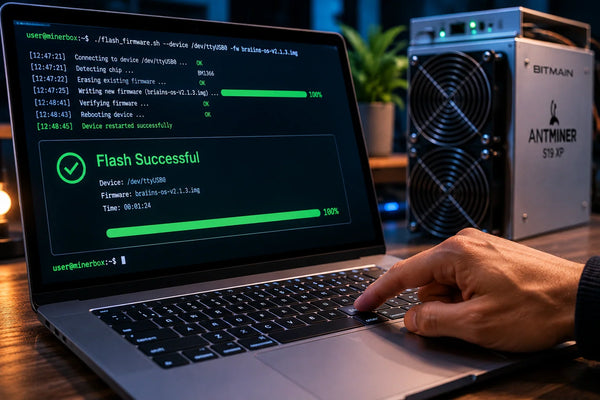
The key distinction is firmware. Flashing unofficial firmware (like BraiinsOS+ or LuxOS) will typically void your warranty — but it also unlocks far more precise control over your miner. If your machine is out of warranty or you've accepted that trade-off, custom firmware is the most powerful tool available.
For in-warranty machines, stick to stock firmware overclocking modes where available, and document your settings carefully.
Before You Start: What You Need
Before touching any settings, make sure you have the following sorted:
Cooling headroom. Overclocking generates significantly more heat. If your exhaust air is already 45°C+ at stock settings, you don't have the thermal headroom to overclock safely. Sort your cooling first.
Stable power supply. Your PSU needs to be rated well above your miner's current draw. If you're running close to the PSU's rated wattage at stock, overclocking will push you over. Measure your actual wall draw before starting.
Network access. You'll be making changes through the miner's web interface, so you need it on your local network and accessible from a browser.
A baseline. Record your current hashrate, power draw, and temperatures before changing anything. You need this data to know whether your overclock is actually working, and to troubleshoot if something goes wrong.
Patience. Don't apply maximum overclock settings immediately. This is a process of incremental steps and observation.
Step 1 — Access Your Miner's Web Interface
Every ASIC miner runs a local web dashboard accessible via your browser. Find the miner's IP address through your router's connected device list or use a network scanner like Angry IP Scanner.
Type the IP address into your browser. You'll be prompted for credentials — check your miner's manual for defaults (commonly admin / admin or root / root). Change these immediately if you haven't already.
Step 2 — Check Current Temperatures and Hashrate
Before changing anything, navigate to the status or overview page and note down:
- Chip temperatures on each hashboard (target: under 75°C at stock)
- Inlet and exhaust air temperatures
- Current hashrate (average over the last hour, not the instantaneous reading)
- Current power draw (if your firmware shows it — if not, measure at the wall with a power meter)
If your chip temps are already sitting above 80°C at stock settings, do not proceed with overclocking. Fix your cooling first.
Step 3 — Locate the Frequency / Voltage Controls
In stock Bitmain firmware (the Antminer interface), you'll find overclock settings under Miner Configuration or Advanced Settings. Look for options labelled Frequency or Clock Speed.
Some models — including the S19 series — also offer a pre-set "High Performance" or "Boost" mode. This is manufacturer-approved overclocking and is the safest place to start.
On MicroBT Whatsminers, similar controls are available under the miner's configuration panel, with frequency adjustable per hashboard on some models.
If you're running BraiinsOS+ or LuxOS, the interface is more granular — you can adjust frequency and voltage independently per hashboard, and even per chip group on some machines. This level of control is where serious tuners operate.
Step 4 — Start Small and Step Up Slowly
The golden rule of overclocking: don't go straight to maximum. Increase frequency by 5–10% above stock, apply the change, then wait 30 minutes and check your temperatures.
What you're watching for:
Temperatures. Chip temps should stay below 80°C under load. Above 85°C is a warning zone. Above 90°C, you risk thermal damage — back off immediately.
Hashrate stability. Is your reported hashrate climbing proportionally to the frequency increase? If it's not — or if you're seeing large swings — your chips may be struggling with the new settings and producing errors.
Rejection rate. Check your pool stats. If your share rejection rate climbs significantly after overclocking, you're likely producing invalid shares due to chip instability. This is wasted work that doesn't contribute to earnings.
If everything looks stable after 30 minutes, bump frequency another 5–10% and repeat the process. Keep going until you hit a thermal or stability limit, then back off one step to your last stable setting.
Step 5 — Dial In Voltage (Advanced)
On stock firmware, voltage is usually fixed. On custom firmware, you can adjust it — and this is where real efficiency gains come from.
The general principle: higher frequency requires higher voltage to remain stable. But you can often find a "sweet spot" where you slightly reduce voltage while holding frequency, which lowers your power draw without sacrificing hashrate. This is called undervolting at overclock, and it's how experienced miners squeeze the best efficiency (J/TH) from their hardware.
This process is iterative and time-consuming. Reduce voltage in small increments (5–10 mV at a time), test for stability, and watch your rejection rate. The moment you start seeing instability, bring voltage back up a step.
Step 6 — Run a 24-Hour Stability Test
Once you have settings that look stable over 30–60 minutes, let the miner run for a full 24 hours before declaring success. Monitor:
- Chip temps at the hottest part of the day (important in Australian summers)
- Pool-reported hashrate vs expected hashrate
- Share rejection rate
- Any automatic reboots or error flags in the miner's logs
A setting that's stable for an hour can still be marginal at sustained load. The 24-hour test is non-negotiable.
What Temperatures Are Safe?
As a general guide for most modern SHA-256 ASICs:
- Under 75°C — Comfortable, plenty of headroom
- 75°C – 80°C — Normal operating range at overclock, monitor closely
- 80°C – 85°C — Warning zone, consider backing off or improving cooling
- Above 85°C — High risk of chip degradation over time; reduce clock speed or fix cooling before continuing
- Above 90°C — Immediate risk of damage; back off settings now
These are chip temperatures as reported by the miner's internal sensors. Ambient temperatures in your mining space significantly affect these readings — a miner that runs fine in a 20°C room in winter may thermal-throttle in the same spot during a Perth summer.
Custom Firmware: The Power User Option
If your miner is out of warranty and you want maximum control, custom firmware opens up a different level of tuning.
BraiinsOS+ is the most widely used option, compatible with a broad range of Antminer hardware. It supports per-chip frequency tuning, autotuning, and detailed power efficiency reporting. It's open source and actively developed.
LuxOS (by Luxor) is a more recent alternative with strong autotuning capabilities and integration with Luxor's mining pool. It's particularly popular with S19 series miners.
VNish is another option, especially common in regions with strong local mining communities, and supports a wide range of Antminer models.
Installing any of these will void your manufacturer warranty. However, they can also meaningfully extend the useful life of ageing hardware by unlocking efficiency settings that stock firmware doesn't offer.
Warranty-Safe Overclocking: The Summary
If keeping your warranty intact is important, follow these rules:
Use only stock firmware with any built-in overclock or boost modes offered by the manufacturer. Do not flash third-party firmware. Keep chip temperatures below 80°C at all times. Document your settings and run times. If the miner develops a fault, restore factory settings before sending it in for warranty assessment — most manufacturers check configuration logs, and running at non-stock frequencies will be flagged.
The Bottom Line
Overclocking your ASIC safely is about discipline more than technical skill. The hardware can handle more than factory settings suggest — that's why the margin exists. But the miners who get the best long-term results are the ones who step up gradually, monitor obsessively, and back off before they hit a wall.
Start with the manufacturer's own boost mode if available. Graduate to custom firmware when the warranty expires. And always sort your cooling before touching your clock speeds — thermal headroom is the foundation that every safe overclock is built on.
Need help selecting the right miner for overclocking, or sourcing a PSU with adequate overhead? Browse the MinerHub catalogue or get in touch with our team.